


# install the agent$ curl -fsSL …/OSA/main/scripts/install.sh -o osa.sh$ sh osa.sh# register it, then connect$ miosa host register studio --platform linux$ osa opencomputers login$ osa opencomputers enable --no-profile$ OSA_OPEN_COMPUTERS_ENABLED=true osa serve. : . - ' . ` :. :
: . - ' - -1 : . *
` . : 0 0 ' . + ' -
0 1 ` '
1 : . 1 + : *
+ + 1 : . 1 : 0 * 1 1 '
' 0 + 0 : - ` `
' 0 . - 1 0 0 . 0 + . + * *
1 + * +
' + * : . 1 0 1 .1
0 1 . 0 0 ` ' - ' 0 *
: `: ' ' + .
1 - 0 . + 0 * * `
` . ' . - . 0 -
- : :- . '+ ' + 1 1 * *
' . *0 * 0 ` - ` - '
: ` ' ` 0 `* * ' - 1 + `
+ ' ` ' '+ * * + . 0 : + : * ' .
` * ' ` ` ` 0 : + ' +'
0 : 1 + : :0 0 ` + ` : *
' - : ` +: ' * ` .- ' - `
1 ` 1 . . ' - : ` .
. - : * - ' 1 + 1 + + 0
: * : : - * ` 1 0 : :
- 1 : ' * . - * * .
. : - + - * - + ': - `
' . : ` - : + : : 1 + ` 0 + *1
' * 1 1 * * :' . :
1 1 * ' . - ` + -
+ . + * . - . 0 0 . 0 :
* ` . '
. - 1 `` :
- ` 1 : . 11
* : : * 0
: - ' . - . 0 0 1 `
. ' 0 ` ' 0 0+ .
* + ' 1 + * : 0
. . 0 + ` +. -
* ' : * : 0 -
- - : 0 0 +* ` ' *
` . + ' 0 +
* 11 . ' 1 1 '
- * 0 0 ` + - - .* ` ' * 0 1 '
* 0 - - : ` '
* - ' ` 1 . 0 0*
.* : ` . * ' . ' 1 + 0
: + * ` . '
1 '
. . 1 ' : 0 : - . ` ' 1 1
: + . +0 :
: ` 1 * ` : ` '` : ` : : . . - `
` ` * : : - - 1 ' - ' :
* - ' * . * . ' . ' .
0 ` 0 - ` ` ` 1 0 1 . -
. 0' 1 ' 0 ` . : : 0 + * . ' - . : `
1 . - ' ` 0 ` * +
- ' 1- : 0 * ` : .
* : ` + ` - : ' + 0 1
+ * ` + 1 0 . 0 1 -
. 0 0 + 0 + ` + *
- * ' `
* 0 ` .
0 +` * * -1'
. * + : * 0
1 ` 0 : : 0 : 0 `
. + - : :
* ` - 1 * : ' ' 0 0
' - - 0 - . : * * . + + ' .
` . ' + 1 + ' ** + * + : ` + ' 0
: ' : : 0 : ` ' : ` :
0 . 0 ** . ` * 1 '
0 . - * - . 1 ' + 1 : :
* + 0 -* + + 0 *+ . 1 *
. 0: : 1 . '
' 1 ' . . : 0 : +
- * : 1 - ` : * 0 *:
' * * . : ` . ' ' + : 0` ` + .
` * 1 - * '
- . - + 0 0 . .` 0 +
` '1 1 - : : ' * ' . + 0 '
- 1 - 0 : . ::
' 0 . - : * + 0 1+ ' . + +
. + - ` ' : * : * ' -
. * : - 0 * 1 + ` * ` `
.---.
:| * |-.-.-.-.-.-.-.-.-.-.-.-.-.-.-.-.-.-.-.-.-.-.-.-.-.-.-.-.-.-.-.-.-.-.+
:'---' :
: :
: :
:
:
:
:
-.-.-.-.-.-.-.-.-.-.-.-.-.-.-.-.-.-.-.-.-.-.-.-.-.-.-.-.-.-.+
.-.-.-.-.-.-.-.-.-.-.-.-.-.-.+ +.-.-.-.-.-.-.-.-.-.
: :
: :
: :
: :
: :
: :
: :
: :
: :
: :
: :
:.---. .---.
:| * |-.-.-.-.-.-.-.-.-.-.-.-.-.-.-.-.-.-.-.-.-.-.-.-.-.-.-.-.-.-.-.-.-.-.-.-.-.-.-.-.-.-.-.-.-.-.-.-.-.-.-.-.-.-.-.-.-.-.-| * |
'---' '---'
-.-.-.-.-.-.-.-.-.-.-.-.-.-.-.-.-.-.-.-.-.-.-.-.-.-.-.-.-.-.-.-.-.-.-.-.-.-.-.+
:
:
:
:
: :
: :
: :
: :
: :
: :
: :
: :
:.---. :
:| * |-.-.-.-.-.-.-.-.-.-.-.-.-.-.-.-.-.-.-.-.-.-.-.-.-.-.-.-.-.-.-.-.-.-.-.-.+
'---'
  .------------------------.
  | o o o                  |
  |  $ miosa build         |
  |  > claude-code  ready  |
  |  > codex        ready  |
  |  > osa          ready  |
  |                        |
  '------------------------'
 __/________________________\__
'------------------------------'
.--------------------.
| [] ::::::::::  o o |
|--------------------|
| [] ::::::::::  o o |
|--------------------|
| [] ::::::::::  o o |
|--------------------|
| [] ::::::::::  o o |
'--------------------'
.--------.
| ====== |
| > run  |
| > done |
|        |
|   ()   |
'--------'
        .--.      .-.
     .-(    ).--.(   ).
    (   sandbox  ) (   )
   (___.____.___)__(__)
      |   |   |   |
     [#] [#] [#] [#]
.----------------------.
| [] [] [] computer |
| ________________ |
| | browser ___ | |
| |__________|___|_| |
'----------------------'
_|____|_.--------------------. | [] :::::::::: o o | |--------------------| | [] :::::::::: o o | |--------------------| | [] :::::::::: o o | |--------------------| | [] :::::::::: o o | '--------------------'
.------------------------. | o o o | | $ miosa build | | > claude-code ready | | > codex ready | | > osa ready | | | '------------------------' __/________________________\__ '------------------------------'
.--------------------.
| [] ::::::::::  o o |
|--------------------|
| [] ::::::::::  o o |
|--------------------|
| [] ::::::::::  o o |
|--------------------|
| [] ::::::::::  o o |
'--------------------'
.--------.
| ====== |
| > run  |
| > done |
|        |
|   ()   |
'--------'
        .--.      .-.
     .-(    ).--.(   ).
    (   sandbox  ) (   )
   (___.____.___)__(__)
      |   |   |   |
     [#] [#] [#] [#]
.----------------------.
| [] [] [] computer |
| ________________ |
| | browser ___ | |
| |__________|___|_| |
'----------------------'
_|____|_.--------------------. | [] :::::::::: o o | |--------------------| | [] :::::::::: o o | |--------------------| | [] :::::::::: o o | |--------------------| | [] :::::::::: o o | '--------------------'

Build with every agent, on your Mac.
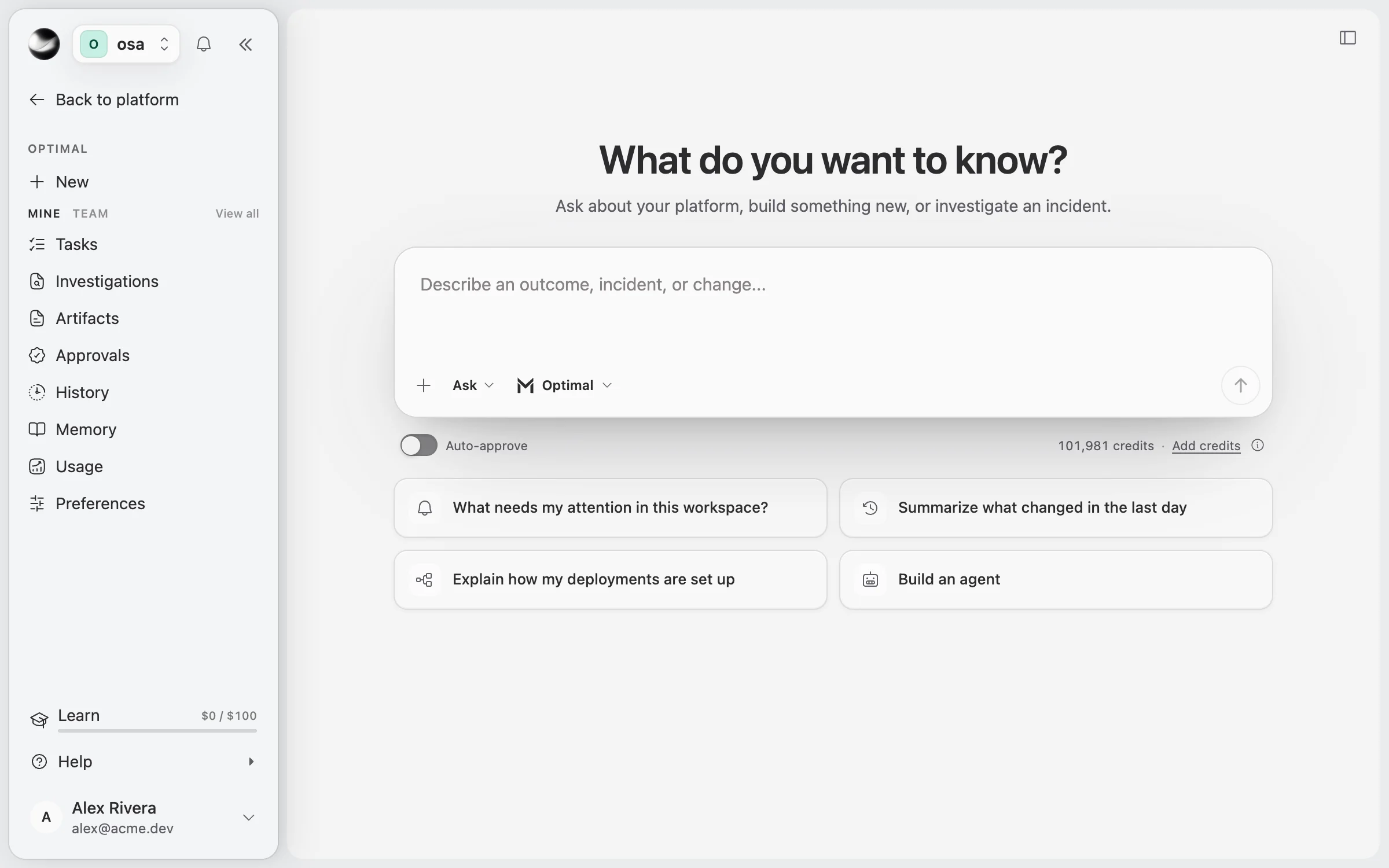
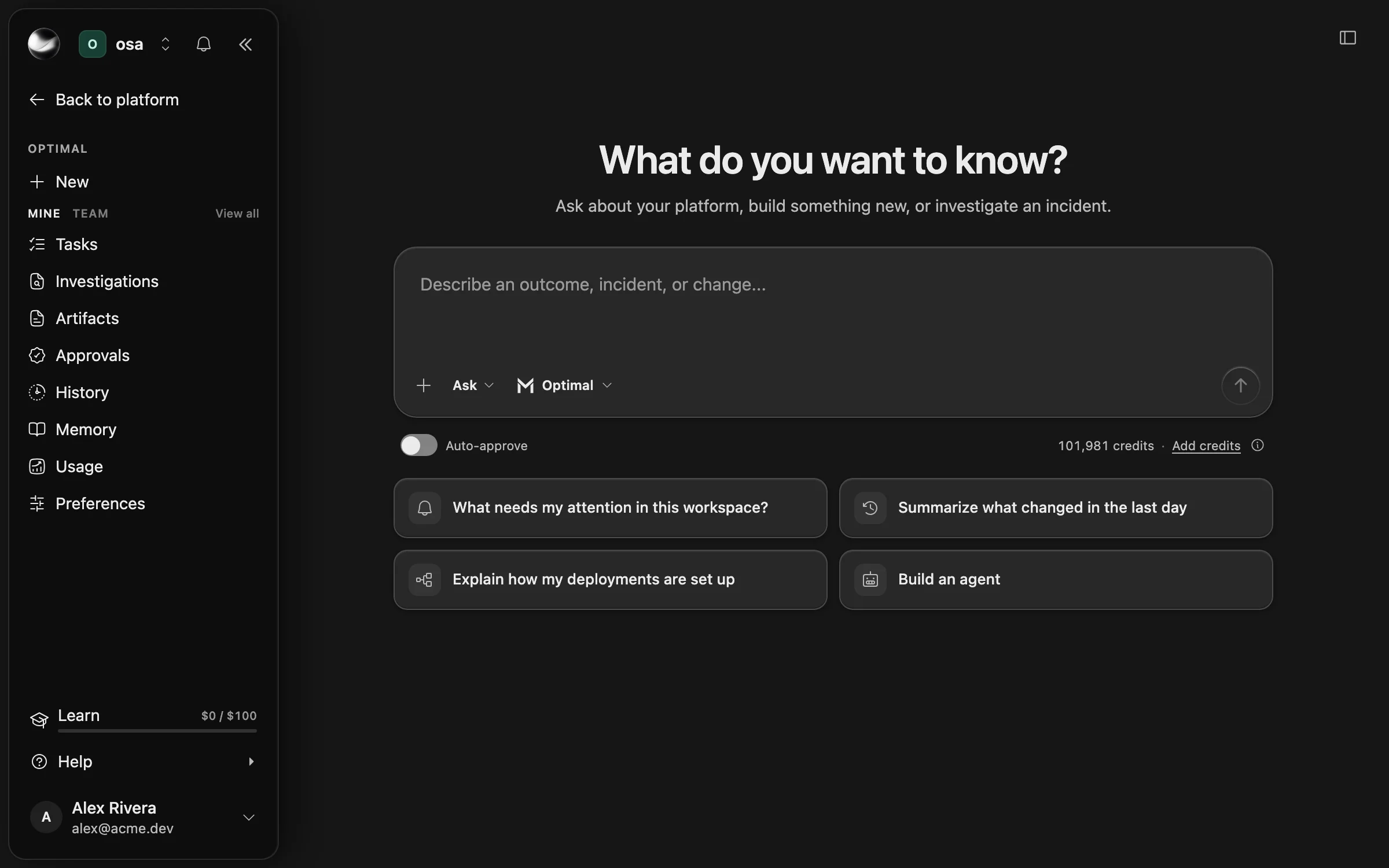
Chats, terminals and every coding agent, on this Mac and your cloud machines, in one app.
Download for Mac
Apple silicon · Version 0.1.0 · 131 MB · macOS 12 or newer
MIOSA · Command Center
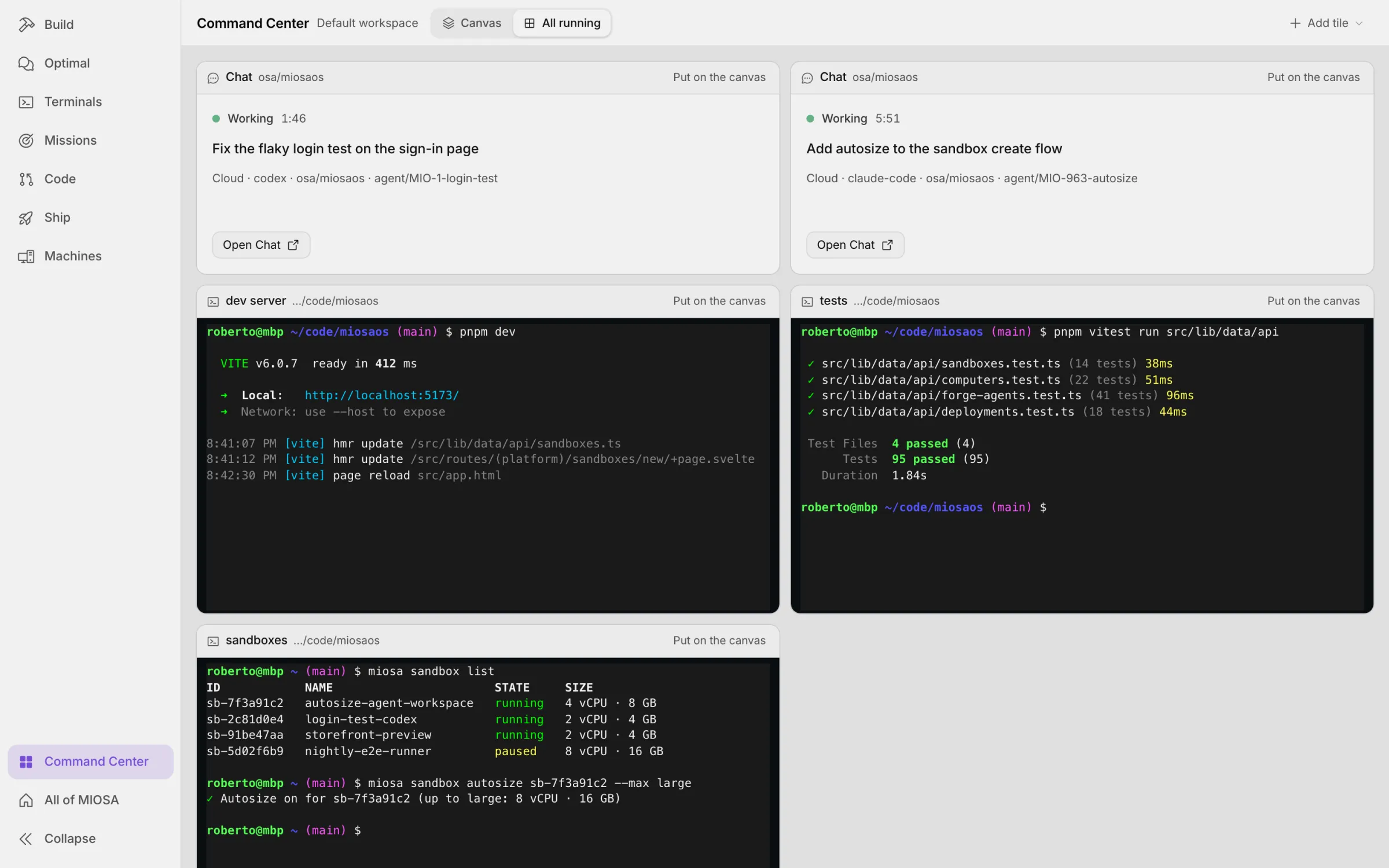
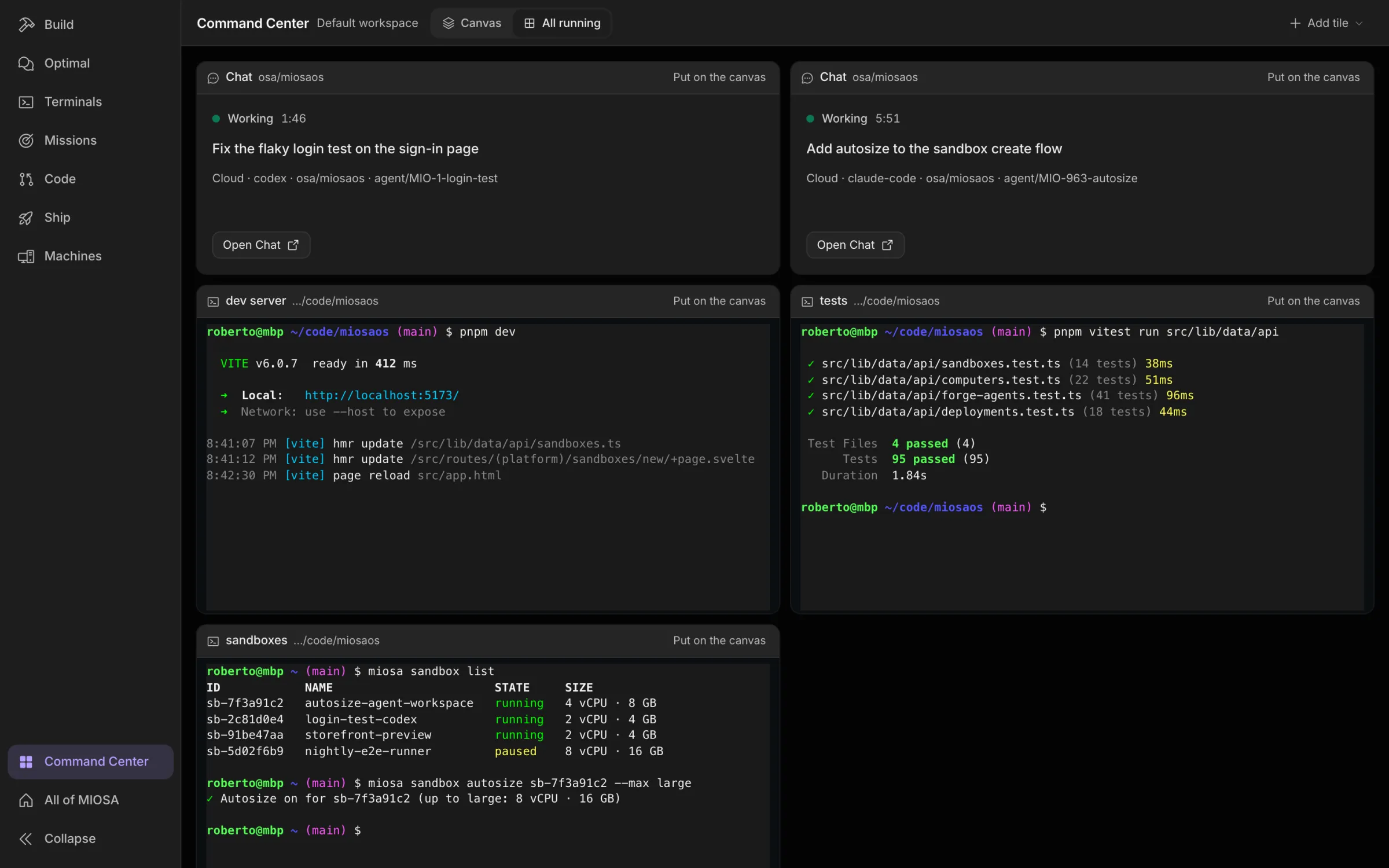
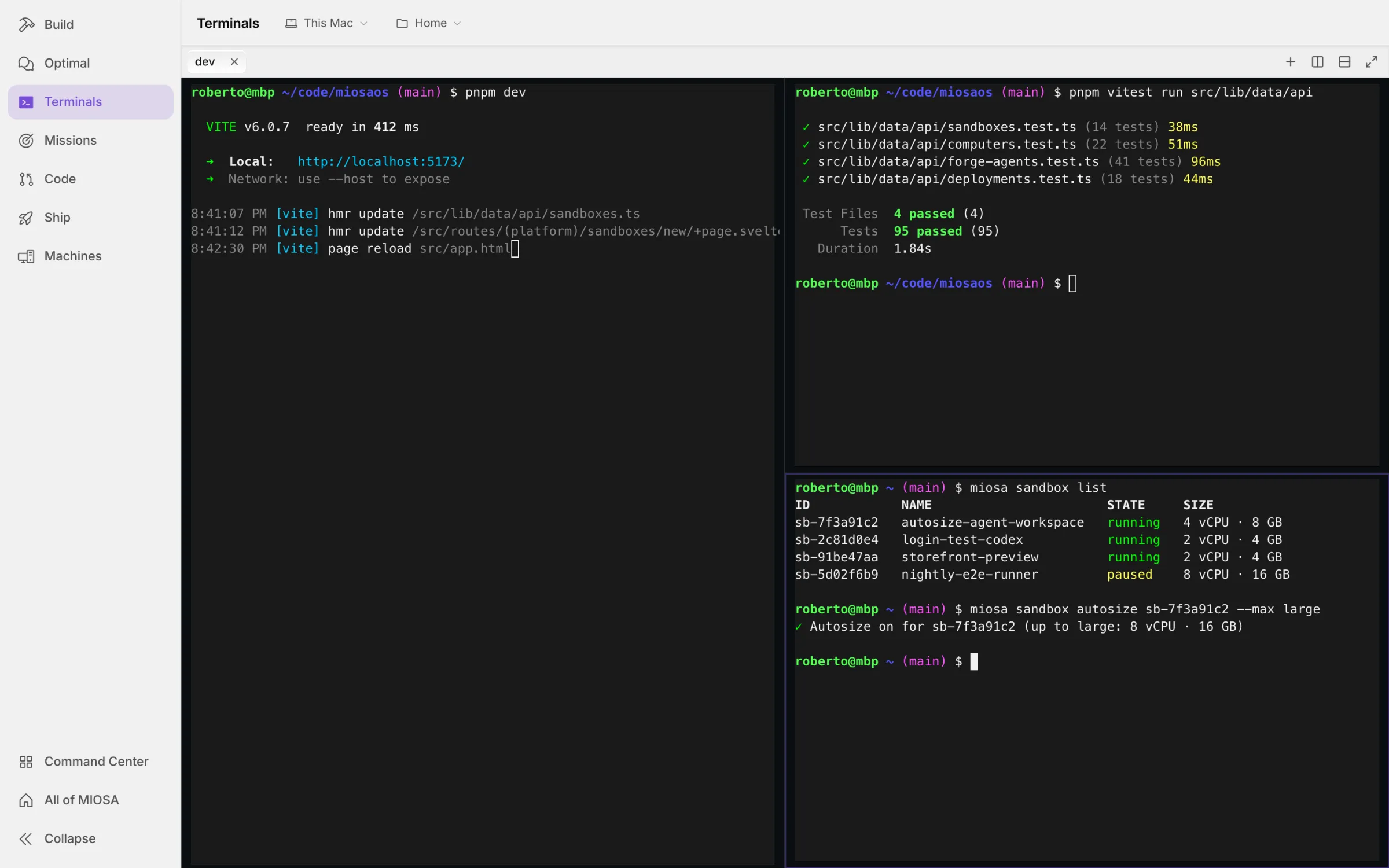
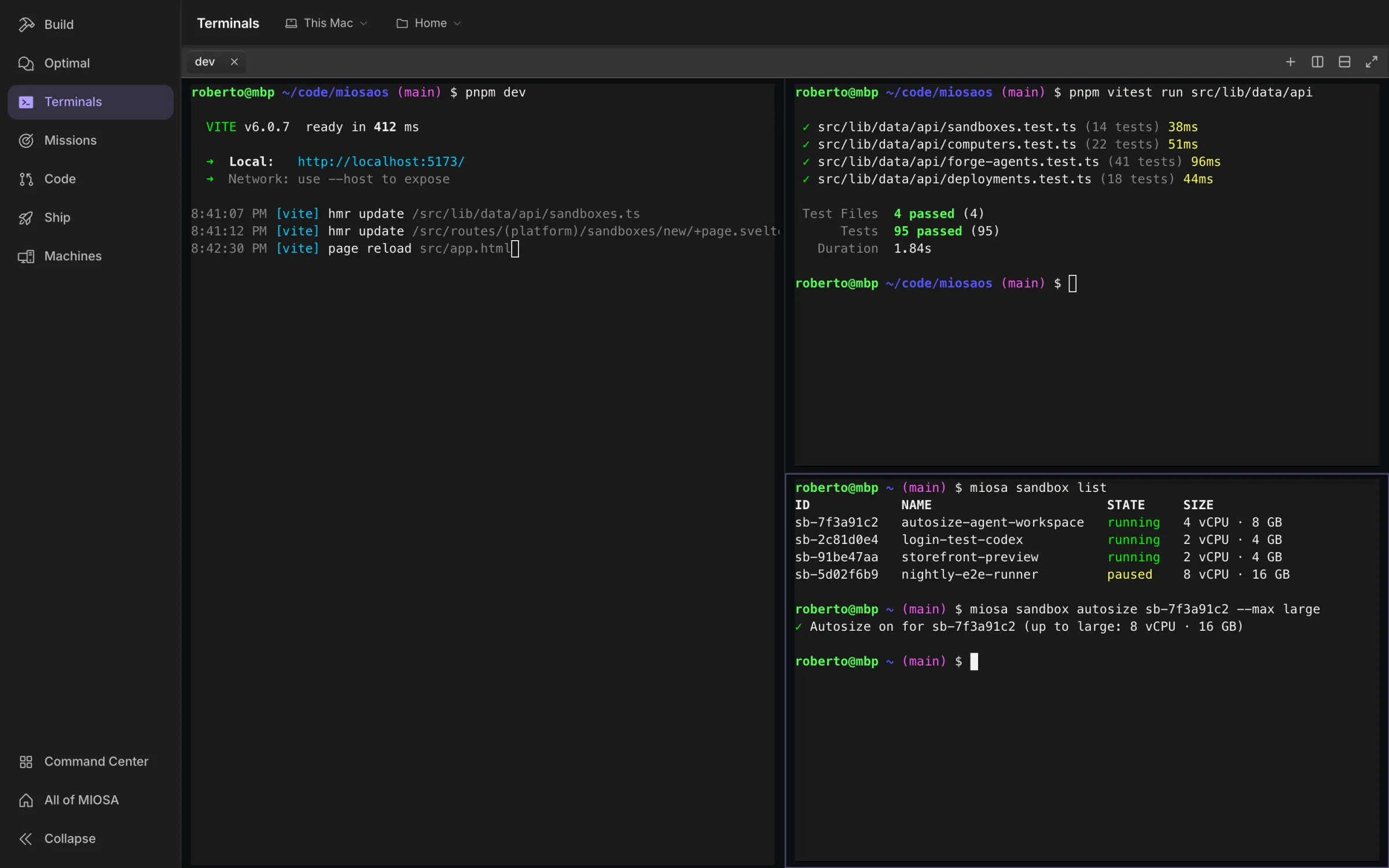
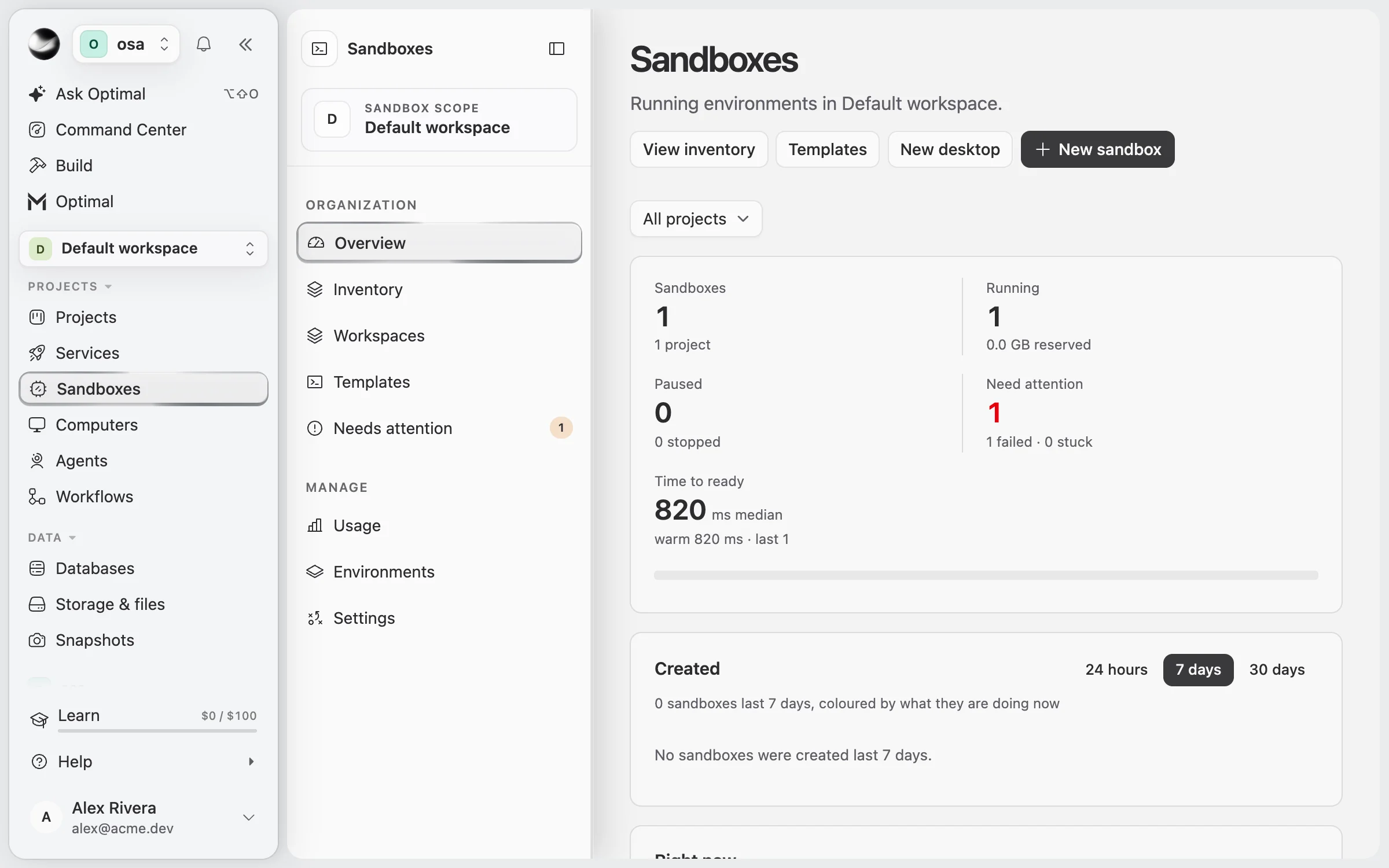
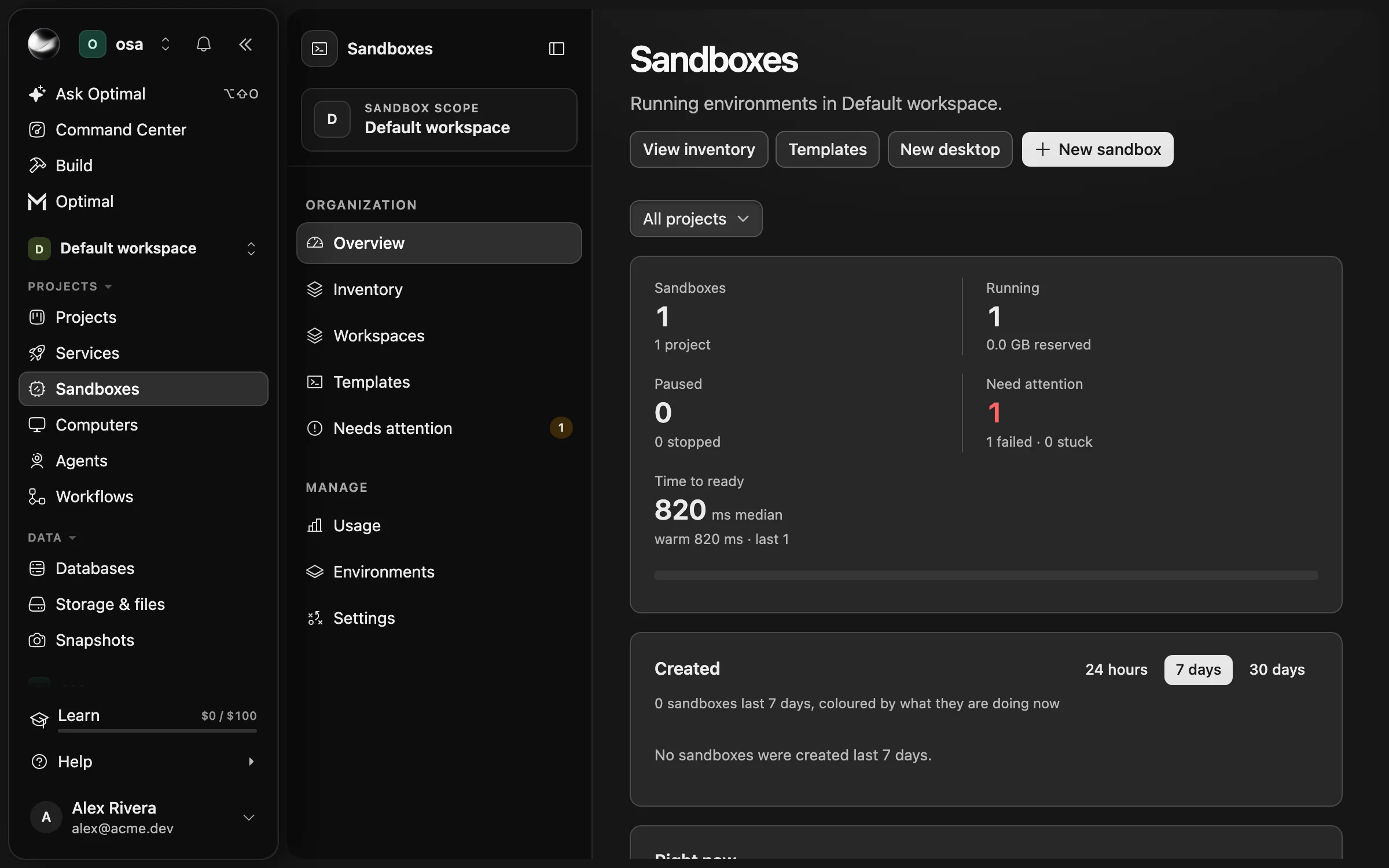
Build
Add autosize to the sandbox create flow: a toggle, plus a max size, sent to the API.
Thought for 2s
To do 3 of 3
Send autosize from createSandbox
Toggle and max size in the New sandbox form
Unit tests for the request body
Edited 1 file and ran 1 command · 2 steps
src/lib/data/api/sandboxes.ts+2-1
11
export async function createSandbox(input: CreateInput) {22
const size = input.size ?? "small";3-
return api.post("/sandboxes", { ...input, size });3+
const autosize = input.autosize ?? { enabled: false };4+
return api.post("/sandboxes", { ...input, size, autosize });45
} Ran
pnpm vitest run src/lib/data/api/sandboxes.test.ts 14 tests pass · 4.1sAutosize is wired end to end:
createSandbox sends autosize with the requestthe New sandbox form has an Autosize toggle and a max size
14 tests pass
Next I'll open a pull request against main.
Ready for review
Reply, or tell it what to change
Claude Code Opus 5.5 main
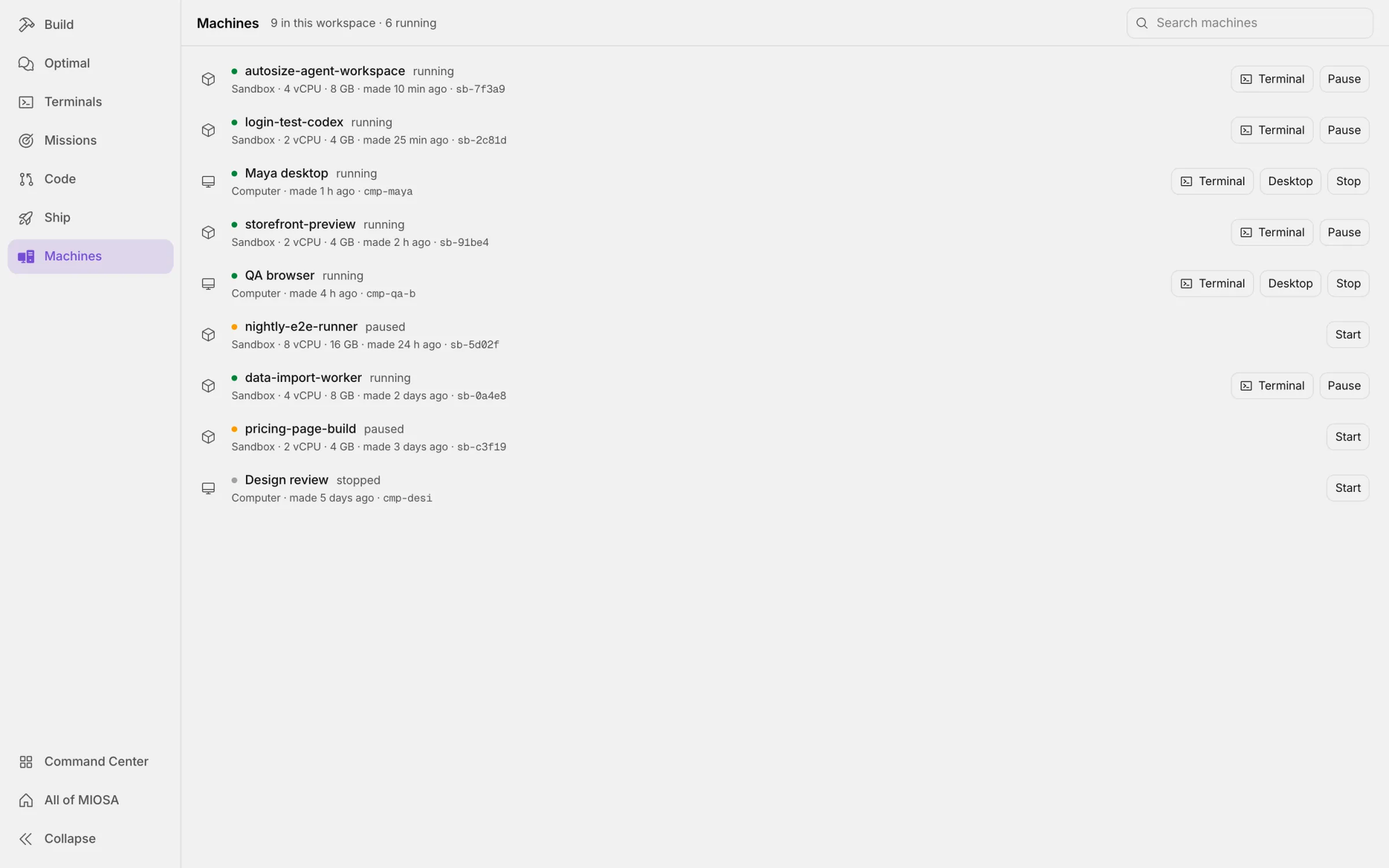
Claude Code, Codex, OSA and more, each in its own Chat with its branch, diff, tests and terminals.
Installed in a minute
- MIOSA
 MIOSAApplications01
Drag MIOSA to Applications
Open the .dmg file and drop the icon on the Applications folder.
- MIOSA Sign in to MIOSA Continue in browser02
Open it and sign in
MIOSA opens to its sign-in screen and sends you to your browser.
- miosa.ai/approveApprove MIOSA on this MacApproveBuild is opening03
Approve once
Confirm in the browser, and the app lands in Build.
Set up your open computers
An open computer is a machine you own, a Mac, a Linux box or a Windows PC. MIOSA agents and your team use it like any cloud computer.
- $ sh osa.sh Agent installed1
Install the agent
One small program on the machine you want to add.
- $ miosa host register studio Host key
hk_••••••••••Shown once2Register it
MIOSA prints a host key, once. The agent uses it to connect.
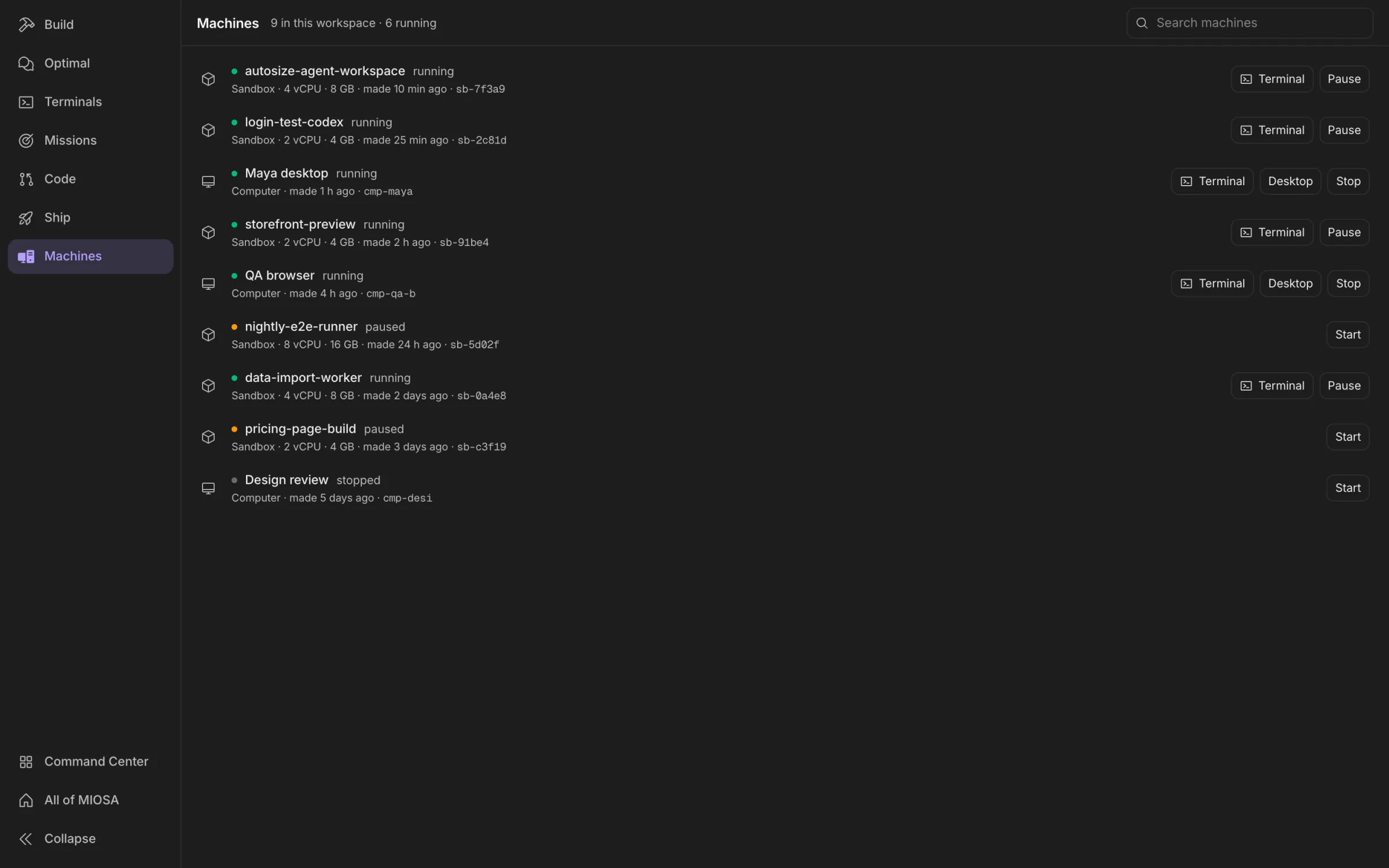
- MachinesThis MacmacOSstudioLinuxoffice-pcWindows3
It appears in Machines
The machine calls out to MIOSA. No inbound port is opened.
- TerminalDesktopstudio$ hostname studioAgentTeammate4
Use it like any computer
Open a terminal on it, or hand it to an agent or a teammate.
With the app, this Mac is ready to connect
Install MIOSA for Mac and sign in. Your Mac can then join your other machines with no commands.